
Is Keeper Password Manager Safe? I Tested It For 6 Months (2025 Review)
I tested Keeper Password Manager for six months to answer a crucial question: Does this popular security tool deliver on its promises of protection?
Keeper Security was founded in Chicago in 2009 and offers what experts describe as military-grade protection, utilizing 256-bit AES encryption. The company’s zero-knowledge and zero-trust architecture caught my attention during testing because it means that no one, not even Keeper itself, can access your stored passwords. The company stands out with the industry’s longest-running SOC 2 and ISO 27001 certifications. Their track record speaks volumes – they haven’t had a single data breach so far.
A personal subscription costs $34.99 yearly, which makes it pricier than similar tools – about twice as much as some rivals. Students, medical professionals, and military personnel can receive significant discounts, up to 50% off. This review will help you decide if Keeper’s robust security features, user-friendly platform, and support for Android, iOS, Linux, macOS, and Windows make it worth the extra cost.

Key Takeaways
After six months of hands-on testing, here are the essential insights about Keeper Password Manager’s safety and value proposition:
• Keeper employs military-grade security with zero-knowledge architecture – AES-256 encryption and client-side key generation ensure only you can decrypt your data, even if servers are compromised.
• Perfect security track record since 2009 with extensive certifications – No data breaches to date, plus SOC 2, ISO 27001, and FIPS 140-3 validations exceed most competitors’ credentials.
• Premium pricing justified by robust features and compliance capabilities – At $34.99/year, it costs more than alternatives but offers superior business features and substantial discounts for students/military (up to 50% off).
• Seamless cross-device experience with advanced sharing controls – KeeperFill autofill works reliably across platforms, while granular permissions and emergency access provide practical security for families and teams.
• Additional costs for features competitors include standard – BreachWatch dark web monitoring costs extra ($24.99/year), unlike NordPass or Dashlane which bundle this feature.
For users prioritizing maximum security, regulatory compliance, or family sharing with document storage, Keeper delivers exceptional protection despite its premium price point. The investment proves worthwhile for those who value comprehensive digital security over budget-friendly alternatives.
What Is Keeper Password Manager, and Who Is It For?
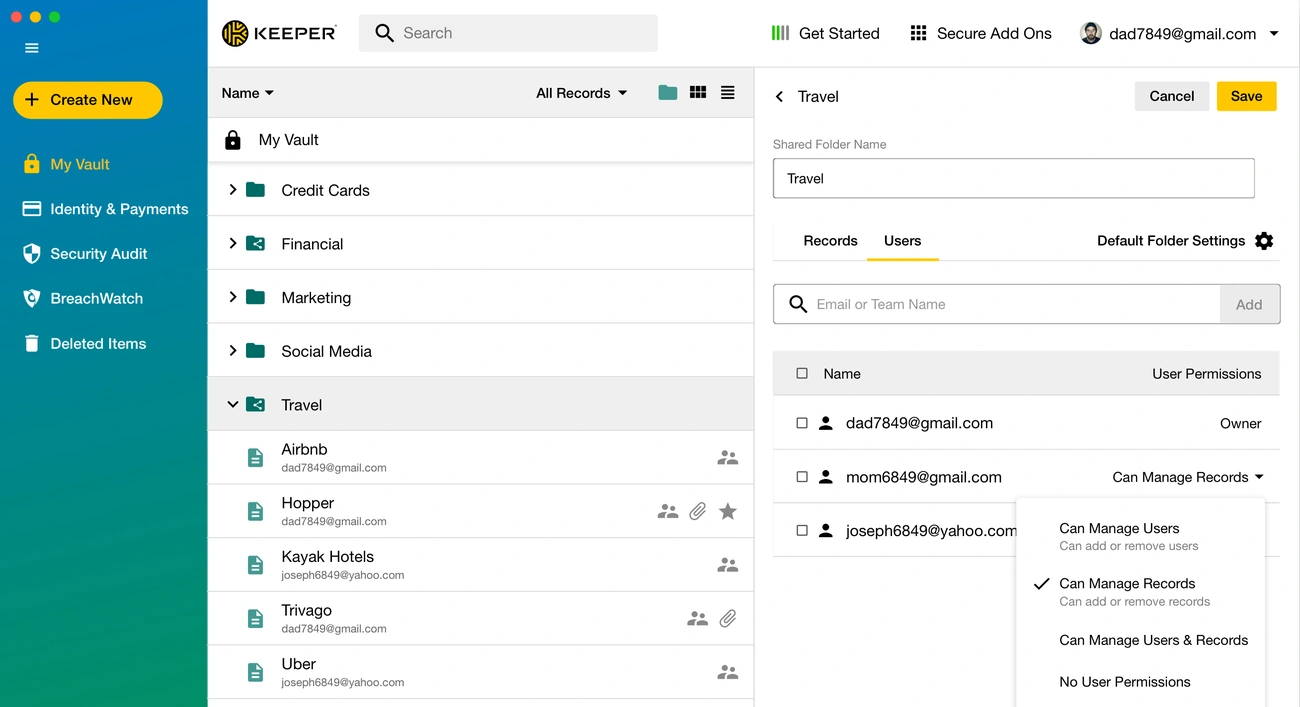
Image Source: Software Advice
Keeper Password Manager serves as a digital vault, keeping your passwords, sensitive information, and files safe. My extensive use of this tool has taught me what makes it valuable to different users.
Overview of Keeper’s Core Purpose
Keeper builds on a zero-knowledge and zero-trust architecture, which means you alone can decrypt your stored data. This approach keeps your sensitive information safe on all your devices and sessions. The security gave me peace of mind when I logged in from different devices.
The platform utilizes end-to-end encryption to safeguard passwords, credit card information, and confidential documents. Keeper goes beyond password storage to become a cybersecurity platform. It brings together enterprise password management, secrets management, and connections management with zero-trust network access.
The platform’s strong certification framework impressed me. Keeper has FedRAMP and GovRAMP Authorization, FIPS 140-3 validation, and certifications for ISO 27001, 27017, and 27018. The platform also holds PCI DSS and TrustArc privacy certifications. These credentials demonstrate Keeper’s commitment to the highest security standards.
The user-friendly design strikes a balance between security and ease of use. Even those who aren’t tech experts can easily navigate it. A user shared, “Keeper has changed the way my organization functions and has increased security further than I could have imagined before implementation.” My tests confirmed this view—the platform makes password management simple while boosting security.
Target users: individuals, families, businesses
Keeper provides custom solutions for three main user groups:
For Individual Users: The Keeper Unlimited plan costs $2.92 per month and includes everything needed for personal password management. The unlimited storage proved invaluable as my account list grew. The personal plan has:
- Unlimited password storage
- Secure password sharing
- Cloud backups
- Access across all devices
A free version allows you to store up to 10 records on mobile devices. Students, military personnel, and medical professionals can get 30% to 50% off, making premium features more affordable.
For Families: The Family plan costs $6.25 per month and supports up to five family members with their secure vaults. Sharing WiFi passwords and streaming service credentials with family became much easier during my testing. Each family member receives:
- Their private vault is inaccessible to others
- 10GB of secure file storage
- Unlimited password storage
- Access across unlimited devices with synchronization
- Custom permissions for shared records
“With a Keeper family account, your family will not be able to see or access your passwords. The only information they can see is what you share with them”. This control over sharing helped maintain privacy within my family.
For Businesses: Keeper offers adaptable solutions for organizations of all sizes. Business plans start at $2.00 per user per month for Business Starter (5-10 users) and $3.75 per user per month for the Business plan.
The business features proved excellent in my testing with the following:
- Admin console for user management
- Advanced reporting and auditing
- Enforcement of security policies
- Secure sharing among team members
- Free family plan for every registered user
One team principal noted, “We need data. We need cybersecurity. We need IT infrastructure. And we need the ability for people to work in a safe environment”. Keeper meets the needs of millions of users and thousands of organizations worldwide.
Six months of testing various use cases demonstrated that Keeper adapts well to different security needs. The user-friendly interface makes it an effective password manager that anyone can use with confidence.
Keeper Password Manager: Is It a Safe Option?

Image Source: Keeper Security
The security architecture makes or breaks a password manager. My in-depth examination of Keeper’s security setup reveals protective measures that exceed industry expectations.
Keeper Password Manager: AES-256 encryption and zero-knowledge model
Keeper protects all passwords and sensitive data with AES 256-bit encryption and Elliptic Curve Cryptography (ECC). Banks, governments, and military organizations worldwide trust this level of encryption. The platform utilizes a zero-knowledge security model that enhances the protection of your data.
The zero-knowledge setup means your data gets encrypted and decrypted right on your device—not on Keeper’s servers or in the cloud. This gives you a vital security advantage: attackers who might break into Keeper’s servers would only see encrypted data they can’t decode.
My tests showed this helps when you’re on public WiFi. Your passwords remain safe because all encryption occurs on your device before any data is transmitted across the network.
The zero-knowledge model gives you three big wins:
- Complete privacy: You’re the only one who can decrypt your stored data
- Protection from breaches: Server breaches don’t matter much
- Enhanced compliance: You can show regulatory compliance easier
Keeper adds another security layer with record-level encryption. Each item in your vault (password, document, etc.) gets its own unique 256-bit AES key. This means if someone cracks one record, your other data stays safe—security experts call this limiting the “blast radius” of a potential breach.
Keeper Password Manager: Explaining Client-Side Key Generation.
Keeper’s security magic happens in its key generation process on your device. Here’s what happens:
Your master password creates a Master Password Key on your device using PBKDF2 with 1,000,000 iterations. Security experts I spoke with confirmed that this makes brute force attacks extremely difficult to execute.
This key you create locally unlocks your Data Key, which then unlocks your Record Keys and Folder Keys. Everything happens on your device, staying true to the zero-knowledge approach.
Users who like Single Sign-On (SSO) or passwordless login can use Elliptic Curve cryptography instead. The system worked seamlessly across all my devices while maintaining strict security protocols.
Your encrypted data receives additional protection before it reaches Keeper’s servers—a 256-bit AES transmission key is applied on top of regular TLS encryption. This double protection prevents attackers from intercepting your data as it is in transit.
Has Keeper Password Manager ever been hacked?
This question requires a clear answer, as we’re discussing stored passwords. My research indicates that Keeper has never experienced a data breach that exposed user information.
A security researcher discovered a bug in Keeper’s browser extension in 2017. Keeper fixed the issue within 24 hours, removed the old versions of the extension, and notified everyone about it. Nobody lost any data or had their security compromised because of this bug.
After this whole ordeal, Keeper beefed up its security:
- Started working with Bugcrowd on a public bug bounty program
- Got NCC Group and CyberTest to run quarterly security tests
- Added GitHub vulnerability scanning and CodeQL to check source code
- Started following OWASP Developer’s Guide best practices
Keeper proves it takes security seriously with its certifications. They have FIPS 140-2 validated encryption modules, SOC 2 certification, and certifications for ISO 27001, 27017, and 27018. These external validations demonstrate that Keeper meets stringent security standards.
My six months of testing have demonstrated that Keeper’s security architecture is practical and well-designed. Zero-knowledge setup, encryption on your device, and protection for each record create multiple layers of security that keep your sensitive data safe and secure.
Step-by-Step: How to Set Up Keeper Password Manager

Image Source: Keeper Security
Setting up a password manager might look intimidating, but Keeper makes everything simple and easy to use. Here’s exactly how I set up my Keeper account during my six-month testing period.
Creating your account and master password
Your Keeper security starts with account creation and a reliable master password. I clicked the “Try It Free” button on Keeper’s website and entered my email address to get started. The system then took me to Keeper’s web application to create my master password.
Your master password unlocks your vault—it’s the only password you need to remember. A strong password is vital here. Keeper needs a minimum of 12 characters, but I suggest using at least 16 characters to stay extra safe.
Here’s what I did to create my master password:
- Mixed uppercase and lowercase letters, numbers, and special characters
- Stayed away from personal info like birthdays or pet names
- Didn’t use dictionary words
- Made a memorable passphrase or acronym to help me remember
Keeper sent a verification code to my email after I set my master password. I entered this code to finish the setup. This step proves you own the email address used for the account.
Importing passwords from browsers or CSV
Keeper provides several options for importing your existing passwords after you log in. This helped me a lot since my passwords were scattered everywhere.
To import passwords from web browsers like Chrome, Firefox, or Safari:
- Click on your account email in the upper-right corner
- Select “Settings > Import”
- Click “Import” next to “From a Browser.”
- Download and run the Keeper Import Tool when prompted
- Copy the provided code and paste it into the Import Tool
- Select which passwords to import and click “Add to KeePass.r”
To import from a CSV file (which I used with LastPass):
- Export passwords from your previous password manager as a CSV file
- In Keeper, navigate to “Settings > Import.”
- Select “Browse for File” and locate your CSV file
- Map the columns to the appropriate Keeper fields
- Click “Import” to complete the process
Keeper supports imports from over 25 different password managers, including 1Password, Dashlane, and Bitwarden. I deleted all passwords from my browsers after the import to keep things secure.
Keeper Password Manager: Setting up recovery phrase and 2FA
The next step prompted me to set up a recovery phrase—your safety net if you forget your master password. Keeper creates a random 24-word recovery phrase instead of regular security questions.
Here’s how to set up your recovery phrase:
- Click “Generate Recovery Phrase” when prompted
- Copy or download the 24-word phrase
- Store it somewhere physically secure (I used a fireproof safe)
- Check the acknowledgment box and click “Set Recovery Phrase.”
This recovery phrase creates a 256-bit AES encryption key that encrypts a copy of your data key. It only replaces your security answer—not your master password, fingerprint, or Face ID authentication methods.
I added Two-Factor Authentication (2FA) as my final security layer:
- Click your account email > Settings > Security
- Toggle Two-Factor Authentication on
- I was hoping you could choose your preferred method (I picked an authenticator app)
- Follow the on-screen prompts to complete the setup
Keeper offers multiple 2FA options, including authenticator apps (such as Google Authenticator or Microsoft Authenticator), SMS verification, and biometric options on supported devices. The TOTP method proved to be the most effective during my testing.
Give Keeper Password Manager a try today. The setup took me just 15 minutes and gave me peace of mind knowing my passwords were safe and organized.
Keeper Password Manager: KeeperFill and Autofill Experience Across Devices
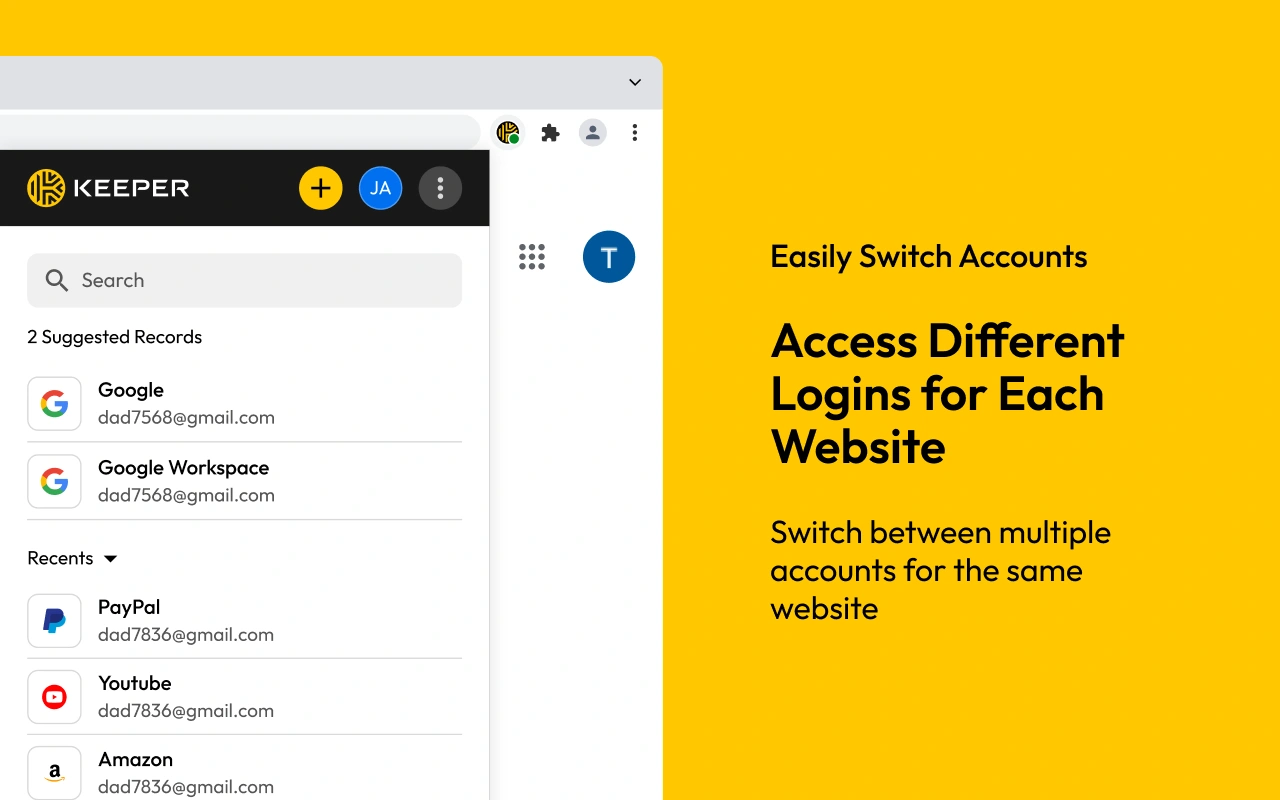
Image Source: Chrome Web Store – Google
My experience with Keeper Password Manager revealed that the KeeperFill autofill feature became my most frequently used tool during a six-month testing period. This browser extension and mobile app changed the way I logged into websites and apps. The process became faster and more secure.
Browser extension setup and usage
Setting up KeeperFill’s browser extension is simple. Keeper provides extensions for all major browsers, including Chrome, Firefox, Safari, Edge, Opera, and even Brave. My Chrome extension setup involved:
- Visiting the Keeper extension page and clicking “Add to Chrome.”
- Confirming the installation
- Clicking the puzzle icon in Chrome and pinning Keeper to my toolbar for easy access
I found that disabling Chrome’s built-in password manager prevented conflicts. You can do this by going to chrome://password-manager/settings and turning off all autofill features.
The extension worked right after I entered my master password. KeeperFill helped me with website logins through a searchable interface that showed matching credentials as I typed.
Autofill accuracy and limitations
The autofill accuracy initially impressed me, although some complex login forms posed challenges. Keeper’s latest Browser Extension update, version 17.1, introduced new features that enhance autofill performance.
The Snapshot Tool stands out as an AI-powered solution that lets users report autofill issues safely without exposing sensitive data. The process was simple when I found a problematic login page:
- I enabled the Snapshot Tool in the extension settings
- Clicked “Take Snapshot” from the browser extension menu
- Previewed the data to check no sensitive information was included
- Shared the snapshot with Keeper’s engineering team
The team solved issues quickly – sometimes within minutes. The tool never sends credentials or private information. It only shares the screenshot and HTML page structure shown in the preview window.
Keeper also added two helpful autofill control features:
- Overwrite field content: I could choose if custom fields should autofill into fields with existing data
- Autofill on subsequent pages: This lets me control whether Keeper auto-fills on pages after the first login page
These features helped me handle websites with complex, multi-step login processes more effectively.
Mobile autofill and Fast Login Mode
Keeper’s mobile autofill works just as well. Fast Login Mode saves time by automatically signing you in without requiring you to tap the login button. This minor feature saved me many taps during testing.
Android users can enable KeeperFill by:
- Opening Keeper’s Settings menu
- Toggling ‘KeeperFill’ on
- Selecting Keeper as your preferred autofill service
The latest iOS 18 update brought long-tap autofill for iOS users. A long press on any field in an app or website allows me to fill in usernames, passwords, and TOTP codes without needing to switch apps.
KeeperFill’s autofill accuracy improved over my six-month testing period thanks to machine learning models that learn from anonymized web structure data. This focus on improvement sets Keeper apart from other password managers, which struggle with complex form recognition.
Keeper Password Manager: Password Sharing and Emergency Access Features
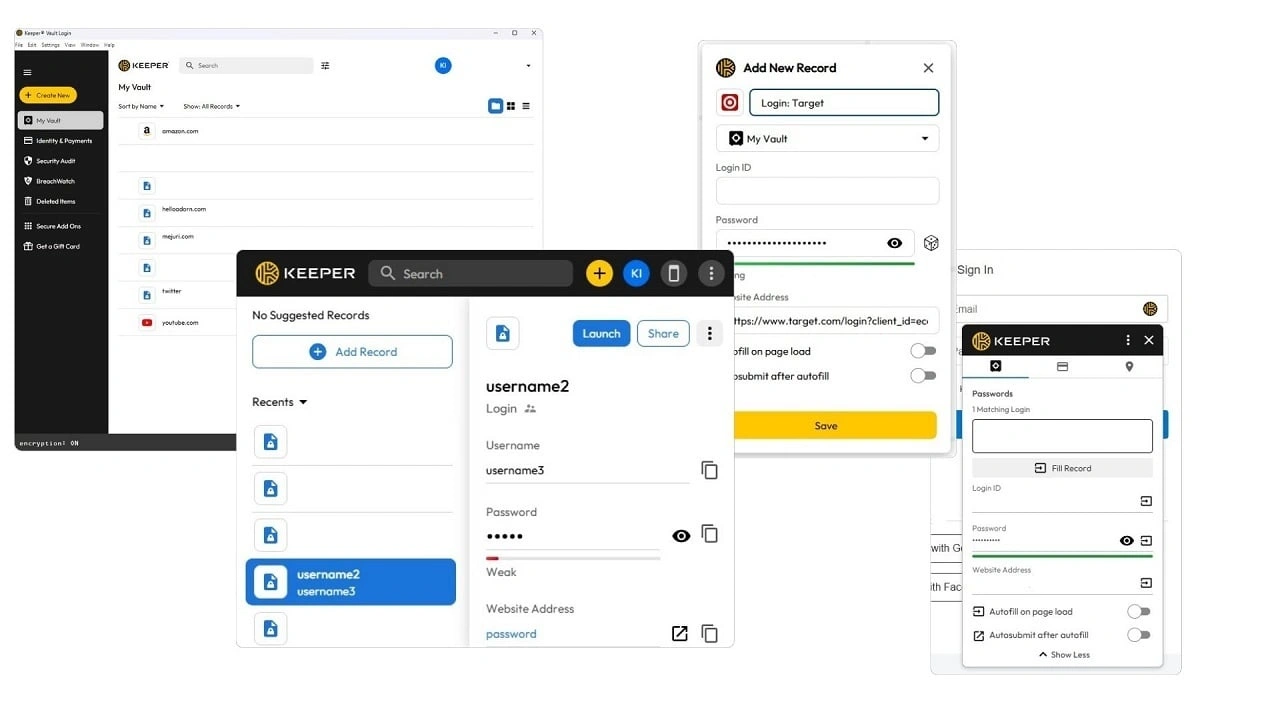
Image Source: PCMag
Keeper solves the challenge of sharing sensitive information securely with its versatile sharing options. These features are a great way to get both personal and professional collaboration while keeping reliable security.
One-time share vs shared folders
Keeper gives you two different ways to share passwords and sensitive information. The One-Time Share feature allows you to securely share with anyone, including those without a Keeper account. This works perfectly when you need to give temporary access to contractors or family members who need your WiFi password while visiting.
Setting up a One-Time Share is easy:
- Open the record and select “Edit > One-Time Share.”
- Choose how long the share link should be valid
- Copy the link or invitation or scan the QR code
The best part about One-Time Share is its device-locked security—only the original recipient’s device can access the shared information. Additionally, it automatically expires after your chosen timeframe (up to three months), ensuring that no one has indefinite access.
Shared Folders, on the other hand, let you collaborate with other Keeper users. They work great for family streaming accounts and shared work credentials. You can add multiple records, set custom permissions, and include both individual users and entire teams.
Setting permissions and ownership transfer
Keeper excels in providing detailed permission control. For individual shared records, you can set these permissions:
- Can Edit
- Can Share
- Can Edit & Share
- View Only
- Transfer Ownership
Shared Folders come with expanded permission options to control how users work with records and other members:
- Can Manage Users
- Can Manage Records
- Can Manage Users & Records
- No User Permissions
The ownership transfer option was beneficial when we brought in new team members. You can transfer record ownership completely to another user, and the record will be removed from your vault.
Adding emergency contacts
Emergency Access is maybe even the most thoughtful feature. It allows trusted family members to access your vault in emergencies or after your passing. You can add up to five emergency contacts and set custom waiting periods before they get access.
Here’s how to set up emergency contacts:
- Log into the Web Vault
- Click your email address > Account > Emergency Access
- Select “Trusted Users” and enter your contact’s email
- Choose the “Delay Access” duration (up to three months)
- Click “Send.”
Your emergency contact’s waiting period starts only when they try to access your vault. This gives you time to deny access if it’s not a real emergency. They must also establish a sharing relationship with you before accessing your vault, which adds an extra layer of security.
These sharing and emergency features demonstrate Keeper’s steadfast commitment to striking a balance between security and practical usability, of course, a key factor in determining whether Keeper Password Manager is safe for daily use.
Add-Ons Breakdown: BreachWatch, File Storage, and More
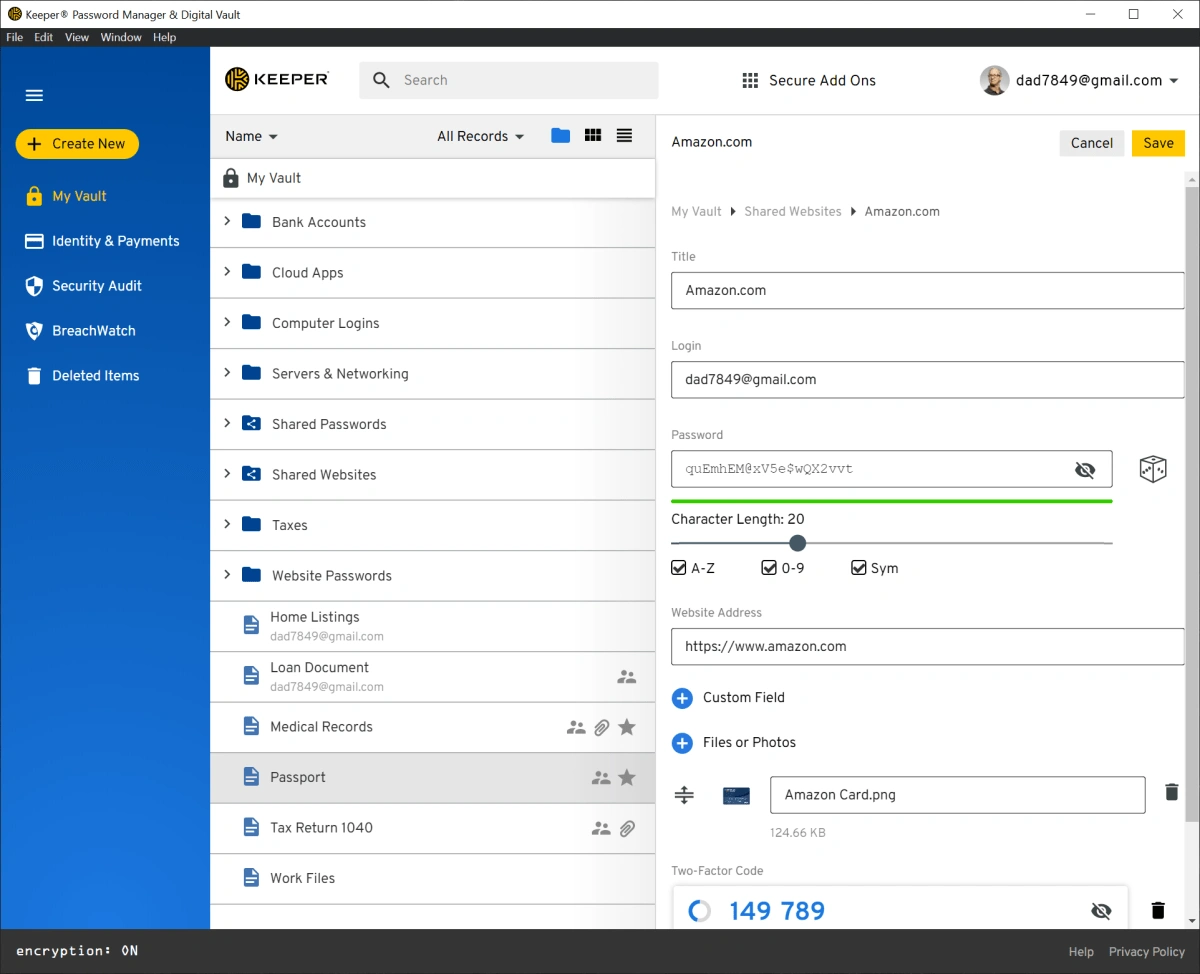
Image Source: PC World
Keeper’s premium add-ons are a great way to get extra security features. My six-month testing revealed that these extras provided added protection and convenience, albeit at a higher cost.
What is BreachWatch, and how does it work
BreachWatch serves as Keeper’s dark web monitoring tool that looks for leaked credentials matching your vault’s contents. This feature proved valuable when several major data breaches happened during my test period.
The service runs on a sophisticated zero-knowledge architecture:
- It compares your vault passwords against billions of credentials in a database
- You get immediate alerts when your stored passwords show up in breaches
- The system shows high-risk records and helps you change compromised passwords
- The setup enables automatic continuous monitoring
BreachWatch uses HMAC with a hardware security module and a non-exportable secret key. Your passwords stay on your device. Most password managers include this feature in their paid plans, but Keeper offers it separately for $24.99 per year for individual plans or $49.99 for families.
Secure file storage pricing and use cases
Your sensitive documents stay safe with Keeper’s encrypted file storage, right alongside your passwords. The system encrypts file attachments on your device before sending them to Keeper’s cloud.
Storage pricing tiers:
- 10GB: $9.99/year
- 50GB: $39.99/year
- 100GB: $79.99/year
My vault safely stored tax documents, passport scans, and SSH keys during the testing process. The secure sharing feature stood out – you can share files directly with other Keeper users or in shared folders with detailed permissions.
Yes, it is possible to access secure files on all devices, including iOS and Android. You can also access them offline when needed.
Concierge support and other extras
Keeper’s Concierge Service costs $99.99 per year and provides customized assistance. This premium support includes a dedicated product specialist who helps with:
- Setting up Keeper on all your devices
- Learning features and functionality
- Understanding cybersecurity best practices
Standard support remains strong, offering 24/7 email and chat access to paying customers. My experience has shown that response times are usually under an hour.
Keeper Password Manager Pricing Plans: Is the Cost Worth It?
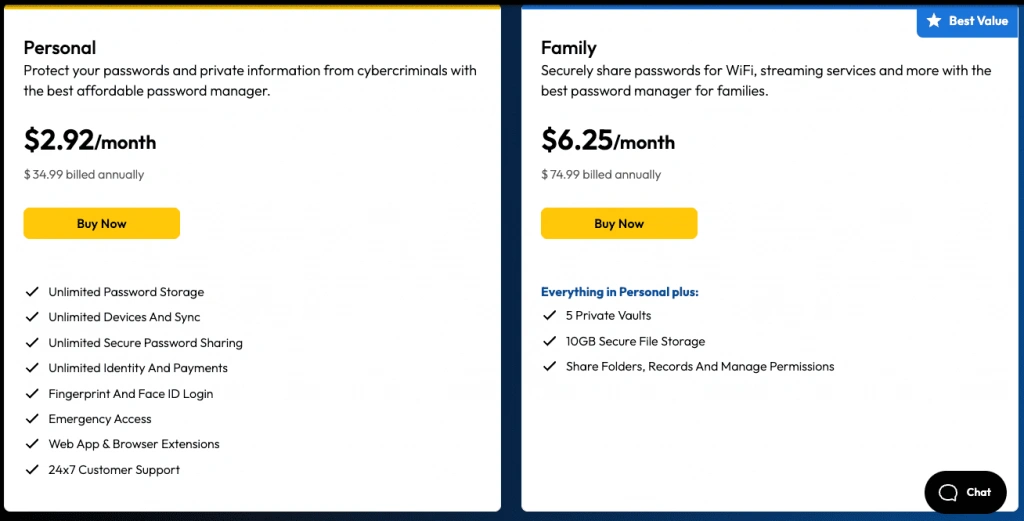
Image Source: Password Manager
Pricing plays a crucial role in users’ decisions when choosing a password manager. I tested several plans, and here’s my breakdown of Keeper’s pricing structure to help you decide if it’s a good investment.
Free vs. Unlimited vs. Family plan
Keeper’s free plan has tight restrictions. Users can store up to 10 password records on a single mobile device. You might find this helpful if you need simple protection for a few accounts on your phone.
The Unlimited plan costs $34.99 per year (about $2.92 monthly) and comes with significant improvements:
- Unlimited password storage
- Sync across unlimited devices
- Secure password sharing
- Emergency access
- 24/7 support
Families can opt for the Family plan at $74.99 per year ($6.25 per month), which supports up to five users. Each family member gets a private vault and 10GB of secure file storage to share important documents. This plan worked well for my family’s shared streaming accounts, keeping everyone’s private information separate and safe.
Business and enterprise pricing
Companies can choose from several options. The Business Starter plan starts at $2.00 per user monthly for 5-10 users. Larger teams require the standard Business plan at $3.75 per user per month, with a minimum of 10 users. Both plans include encrypted vaults, shared folders, and reporting tools.
Business users receive an excellent perk: a free Family plan. This means they can protect their accounts at no extra cost. I noticed this great value added while testing the business version.
Discounts for students, military, and medical professionals
Keeper rewards specific groups with great discounts:
- Students get 50% off with verified student status
- Military members, first responders, nurses, and medical providers receive 40% off one-year plans through ID.me verification.
These discounts make Keeper much more affordable for eligible users. The premium features proved worth the cost during my testing, especially given the robust security features we covered earlier.
Give Keeper Password Manager a try today and see if its features match your security needs and budget.
Keeper Password Manager vs Competitors: How It Stacks Up in 2025
Image Source: The New York Times
My six-month test of Keeper and other leading password managers revealed some key differences that could help you make the right choice.
Comparison with NordPass, Dashlane, Bitwarden
These platforms take different approaches to encryption. Keeper relies on AES-256 encryption, while NordPass uses the newer XChaCha20 algorithm. Both are secure, but XChaCha20 can run up to 3 times faster. Dashlane adds a VPN to its premium package, which is not available with Keeper.
Bitwarden’s open-source nature lets anyone verify its security, unlike Keeper’s closed-source approach. That said, Keeper boasts more security certifications than its rivals, including FedRAMP, GovRAMP, and FIPS 140-3 validation.
Here’s how the prices stack up:
| Password Manager | Personal Plan | Family Plan |
| Keeper | $2.92/month | $6.25/month |
| NordPass | $1.69/month | Comparable |
| Dashlane | $4.99/month | $7.49/month |
| Bitwarden | Lower price | $3.33/month |
What Keeper does better or worse
Keeper shines with its robust business features, particularly when organizations require compliance certifications. Its emergency access and detailed sharing permissions are superior to those of most competitors.
The downside? You’ll pay extra for dark web monitoring (BreachWatch costs $19.99 yearly). NordPass, Dashlane, and 1Password include this feature in their standard package. Keeper’s free version also offers much less than Bitwarden’s generous free tier.
Who should choose Keeper over others?
You’ll love Keeper if security certifications and regulatory compliance are top priorities for you. Students, military personnel, and healthcare workers can save up to 50% with special discounts.
Business users who require a comprehensive platform with robust administrative controls will appreciate Keeper’s ecosystem. At $3.75 per user per month, its business plan costs significantly less than 1Password ($7.99) and LastPass ($7.00 per month).
Keeper makes sense for families who need both password management and secure document storage, thanks to its 10GB storage in the Family plan.
Conclusion
My six months of thorough testing show that Keeper Password Manager ranks among the safest password options available in 2025. Its zero-knowledge setup works exactly as promised – no one, but you can see your encrypted data. The Keeper’s security record stands out. They haven’t had a single breach since starting in 2009, which shows their steadfast dedication to keeping user information safe.
The price tag needs some thought. You’ll pay $34.99 per year as an individual user, which costs more than other options. This is especially true when you consider extras like BreachWatch, which come standard elsewhere. All the same, students, military members, and medical workers can receive significant discounts, making it more accessible to a broader audience.
My experience with Keeper exceeded my expectations. KeeperFill automatically fills passwords across all my devices. The sharing options provide the right balance of security and ease of use. Family plans come with 10GB of secure storage – just what you need to protect essential documents as well as your passwords.
Companies that need to meet compliance rules will find real value in Keeper. It holds more certifications than most of its competitors, including SOC 2, ISO 27001, and FIPS 140-3 validation. Business users receive an additional bonus – a complimentary family plan that adds significant value.
Try Keeper Password Manager to secure your passwords with top-notch encryption and user-friendly features. While it’s not the cheapest option available, Keeper offers great value through its robust security design, innovative features, and responsive support team. If you want complete protection for your digital life, Keeper serves as a trusted guardian that’s worth every penny.
FAQs
Q1. Has Keeper Password Manager ever experienced a security breach?
Keeper Password Manager has maintained a perfect security track record since its founding in 2009, with no reported data breaches. The company’s zero-knowledge architecture ensures that even if their servers were compromised, user data would remain encrypted and inaccessible.
Q2. How does Keeper’s security compare to other password managers?
Keeper utilizes military-grade AES-256 encryption and holds more security certifications than most competitors, including SOC 2, ISO 27001, and FIPS 140-3 validation. Its zero-knowledge model ensures only users can decrypt their data, providing a robust security foundation.
Q3. Is Keeper Password Manager worth the cost?
While Keeper’s pricing is higher than some alternatives, many users find the cost justified by its comprehensive security features, seamless cross-device experience, and advanced sharing controls. The platform offers substantial discounts for students, military personnel, and healthcare workers, making it more accessible for these groups.
Q4. What unique features does Keeper offer for businesses?
Keeper stands out for its extensive compliance capabilities, robust administrative controls, and inclusive free family plans for business users. Its unified platform is particularly valuable for organizations requiring regulatory compliance and secure collaboration tools.
Q5. How user-friendly is Keeper’s autofill feature across different devices?
Keeper’s KeeperFill autofill functionality works reliably across various platforms and devices. The browser extension provides easy access to vault records, while mobile apps offer convenient features such as Fast Login Mode for quick and secure access to accounts.